Download ExnessFAQContact usAbout ExnessLog inDownload now

Download Exness trading platforms

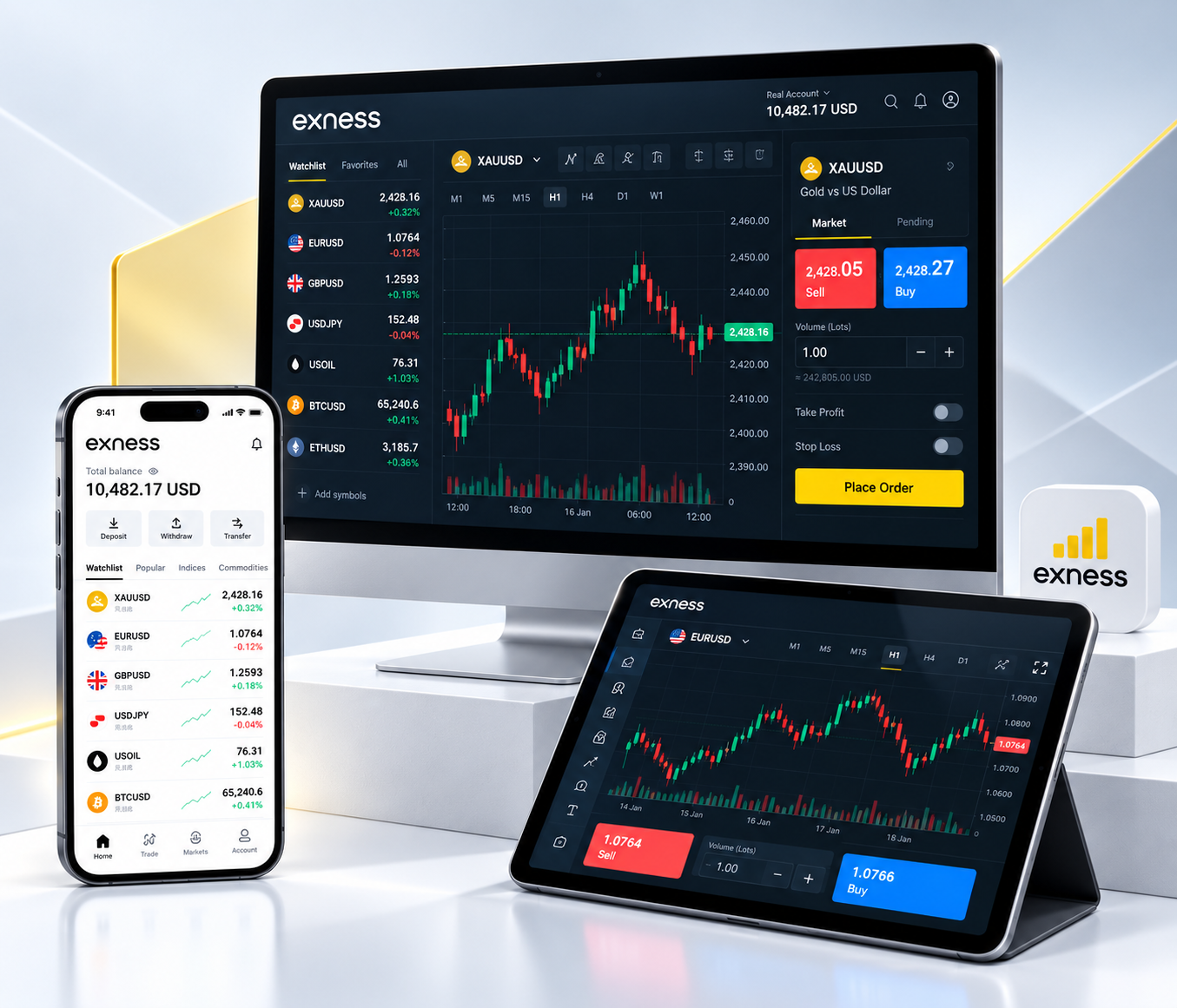
Follow markets and manage funds on your phone, analyze charts and run strategies on your computer, or place orders in a browser. Exness Trade, MetaTrader desktop and web trading give you different ways to access a compatible trading account.

Exness trading platform download

A platform for the way you trade

Web trading provides direct browser access. Exness Trade combines mobile MT5 trading with account and payment management. MetaTrader desktop adds custom indicators, EAs and strategy testing.

MetaTrader web trading

View quotes, analyze charts and manage orders without installing a desktop application. MT4 and MT5 accounts connect through their corresponding web trading environments.

  • View live quotes, use chart tools and manage orders in your browser
  • Connect to compatible MT4 or MT5 accounts through the matching terminal
  • Manual trading tools; no desktop EA execution or strategy testing

Exness Trade mobile app

Bring MT5 charts, orders, account information and payment operations together on your phone. Follow positions, adjust orders and manage account funds when you are away from your computer.

  • Trade compatible Exness MT5 accounts within the app
  • Use the MetaTrader 4 mobile app for MT4 account trading
  • View trading history, set price alerts and access customer support

MT4 and MT5 desktop

Use multiple charts, technical indicators and order tools on your computer. MetaEditor, custom indicators, Expert Advisors (EAs) and the Strategy Tester support a broader analysis and automated trading workflow.

  • Windows versions connect to their respective MT4 or MT5 accounts
  • macOS versions follow the applicable system and program requirements
  • Run EAs, develop custom indicators and test strategies on desktop

Compare trading and analysis tools

All three options provide quotes and order tools. The main differences are account compatibility, payment management and support for custom indicators and locally running EAs.

FeatureWeb tradingExness TradeMT4 / MT5 desktop
AccessBrowserMobile appInstalled client
Quotes and ordersSupportedSupportedSupported
ChartingBrowser chartingMobile chartingBuilt-in and custom indicators; strategy testing
Local EA executionNo desktop EAsNo desktop EAsSupported
Account and paymentsVia Personal AreaBuilt into Exness TradeVia Personal Area
Account compatibilityDepends on web terminalIn-app trading: MT5MT4 and MT5 separately

Connect your trading account

Your Personal Area contains the details of your trading accounts. Compatible web, mobile and desktop platforms connect to the same server records for positions and orders.

1

Find your account details

Check whether your account uses MT4 or MT5, then find its trading account number and server. Your Personal Area password and trading password serve different login purposes.

2

Choose your platform

Open web trading or use Exness Trade, MT4 or MT5 on a supported device. Existing EAs and custom indicators need a desktop platform that supports their program format.

3

Connect to your account

MetaTrader uses your trading account number, trading password and server. In Exness Trade, sign in with your Personal Area credentials and select a compatible account.

Devices and operating environments

Web trading depends on browser compatibility and connectivity. Mobile apps follow the requirements shown in the app store, while desktop platforms follow current MetaTrader system requirements. Charts, indicators and automated tasks also affect performance.

Browser access

Use a compatible browser to view markets and place manual orders. Web terminals do not run desktop EAs; automated strategies need a supported desktop or hosted environment.

iOS and Android

Exness Trade is available for supported iOS and Android devices. In-app trading supports Exness MT5 accounts. App availability depends on your region, store and operating system version.

Windows desktop

Use MT4 or MT5 with the corresponding account for chart analysis, EAs and strategy testing. Locally running EAs require the terminal to remain open and connected to the trading server.

macOS desktop

Use the corresponding MetaTrader desktop version on a supported macOS environment. EA and custom indicator compatibility depends on the program and runtime; web trading is also available for manual orders.

Download and platform FAQ

Answers about browser access, mobile trading, account compatibility and login details.

Do I need to install software for web trading?

No. A web terminal runs in your browser and connects to compatible accounts. Exness Terminal supports MT5, while MetaTrader web environments depend on the selected platform. Desktop EAs, MetaEditor and the Strategy Tester do not run in web terminals.

Should I choose MT4 or MT5?

Match the platform to your account first: MT4 accounts use MT4, and MT5 accounts use MT5. Existing EAs, indicators and scripts must also match the platform; MQL4 and MQL5 programs cannot be used interchangeably.

Can I use Exness Trade with an MT4 account?

Exness Trade does not provide in-app trading for MT4 accounts. Use the MetaTrader 4 mobile app to trade an MT4 account. Exness Trade provides in-app trading for compatible Exness MT5 accounts.

What should I check if I cannot log in?

Check the platform, trading account number, trading password and server name, then review your connection and error message. Your Personal Area password is not the MetaTrader trading password. If the problem continues, give support the error details without sharing passwords or verification codes.

Continue trading on your device

Choose web trading, Exness Trade or MetaTrader desktop to follow markets and manage orders through a platform compatible with your account.

Explore platform options